Beginner guide
How to Play Azeroth Survivors
Choose a hero, enter a zone, and make your first upgrade. A practical guide to the opening minutes and keyboard controls.
Choose a class, learn the controls, and make your first upgrade. Start here before entering Elwynn Forest.
1. Give the game time to load
Open the play area and press Play now. This requests the game from Aethus’s website. The first visit downloads game resources, so a short wait is normal. Leave the page open rather than repeatedly reloading it.
Use a desktop with a keyboard and a WebGPU-capable browser. If you see a WebGPU warning or the screen stays black, follow the loading guide before trying again. A desktop or laptop with a keyboard gives you the best starting setup.
2. Choose a hero and read the menu
The character menu shows a class selection, a character preview, equipment, and a list of zones. Start with an available class and inspect its description. You do not need a “best build” to learn how the first run works. If you are unsure who to choose, compare the nine classes and their starting spells.
The menu has a language control in its upper-right area. If the interface opens in another language, open that control and select your preferred language. The game’s language setting is separate from this website’s language switcher.
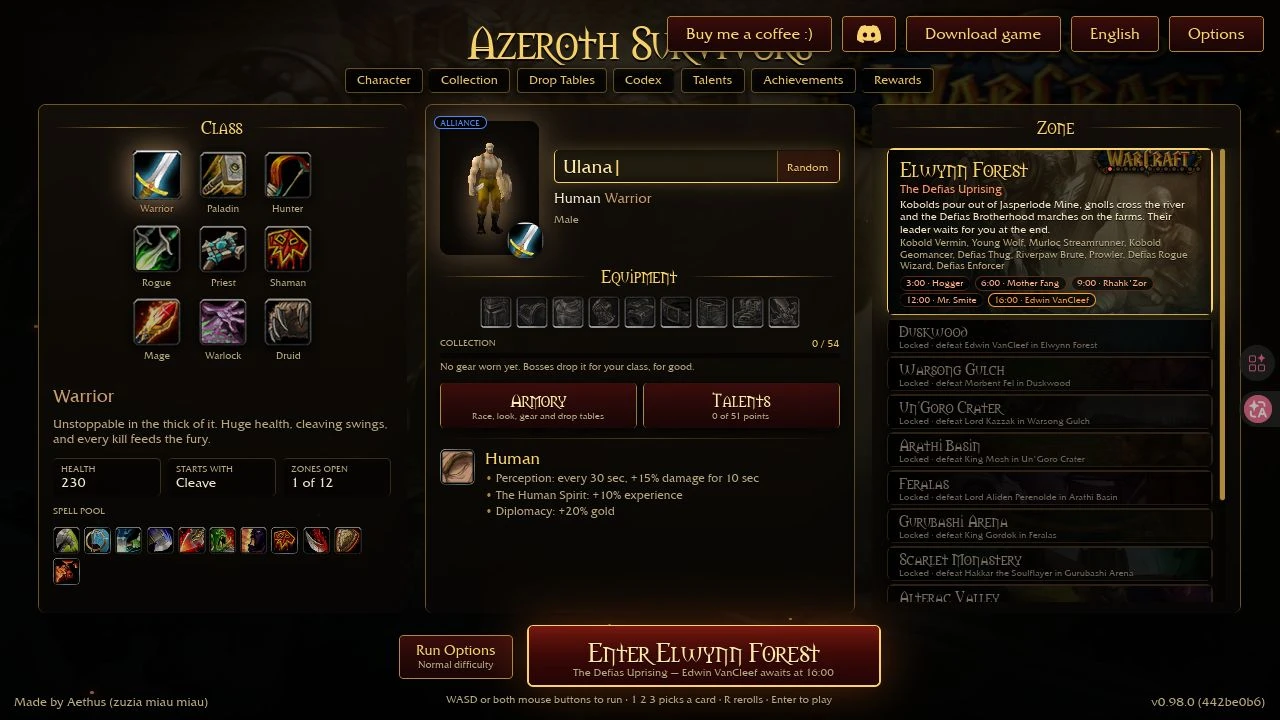
3. Enter the starting zone
Start in Elwynn Forest. Use the enter-zone button beneath the character area, or press Enter to begin.
Click inside the game before using the keyboard. If the website scrolls instead of your character moving, click the game again so it receives focus. The site does not intercept your movement keys.
4. Learn the controls
Click inside the game, then use these controls. Follow the in-game prompts for any additional actions.
| Input | Action / scope |
|---|---|
| W A S D or arrow keys | Move your hero. |
| Enter | Start from the character menu. |
| 1 / 2 / 3 | Choose an upgrade card. |
| R | Reroll your choices when available. |
| Site Full screen button | Expand the game area. This does not restart the game. |
| Esc while the site is full screen | Leave browser full-screen mode. |
5. Read your first upgrade
When you level up, choose from three upgrade cards. Read the effects, pick one that fits your playstyle, and watch how it changes your next fight.
Keep your run open
Once you start the embedded game, this site opens its guides in a new tab, marked with ↗. You can read help and return to the same game tab. Reload and Close ask for confirmation because they may end the current run; they are not pause controls.
Keep using the same browser and game tab for your run. Check the game’s save options before switching to another device or version.
For a game that will not start, use loading help. For the creator’s native option, see the Windows download guide.
Source and scope
- Aethus’s browser game: menu prompts and live gameplay observed October 18, 2026.
- Recorded client: v0.97.2 (43fe5ff8), Windows Chrome 155.
- Menu screenshots: v0.98.0 (442be0b6), captured October 19, 2026. A new gameplay run was not verified during this screenshot refresh.
- Not established by this check: full-run completion, class rankings, mobile controls, or cross-device saves.
Ready for another run?
Play Azeroth Survivors